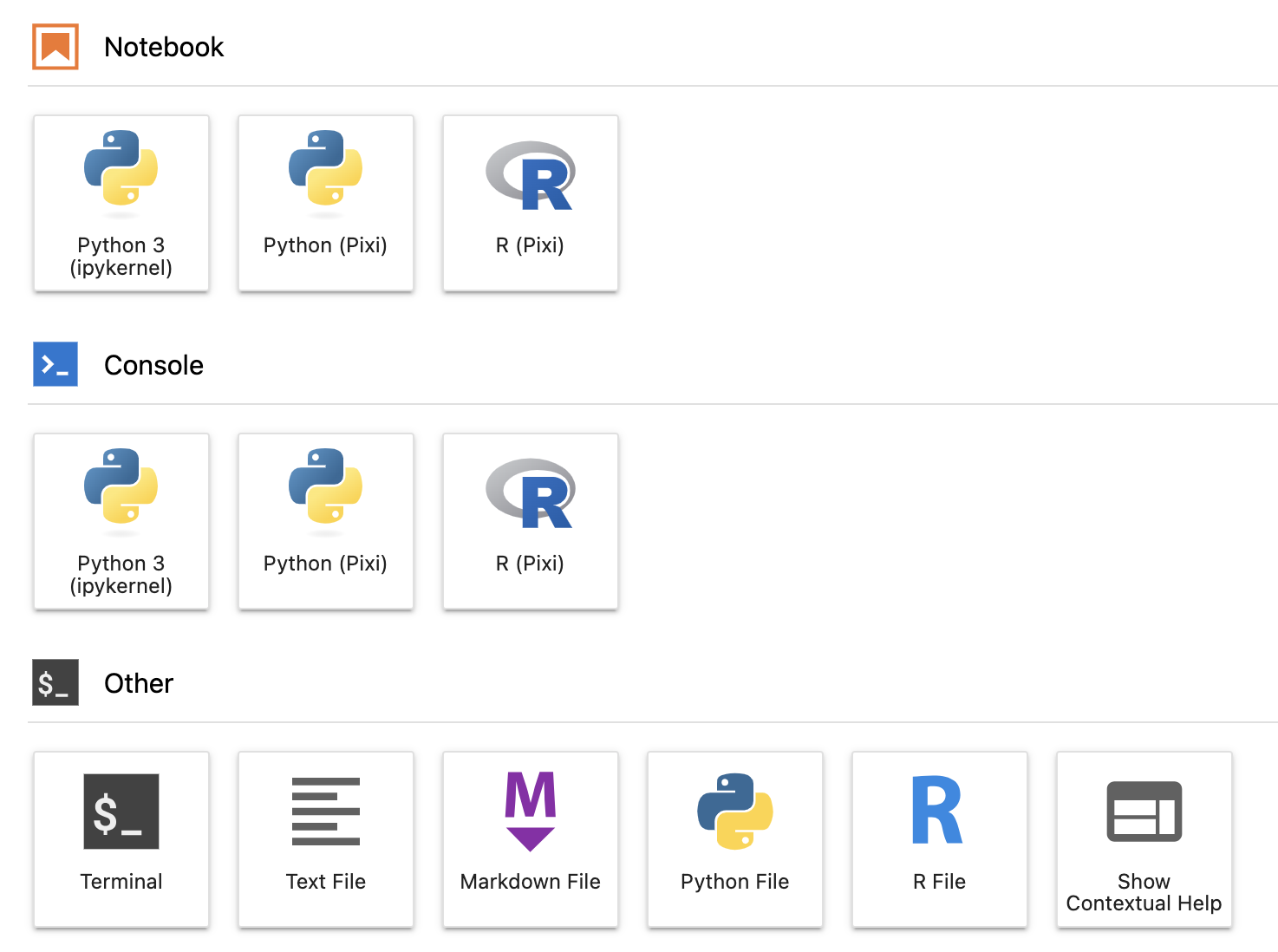
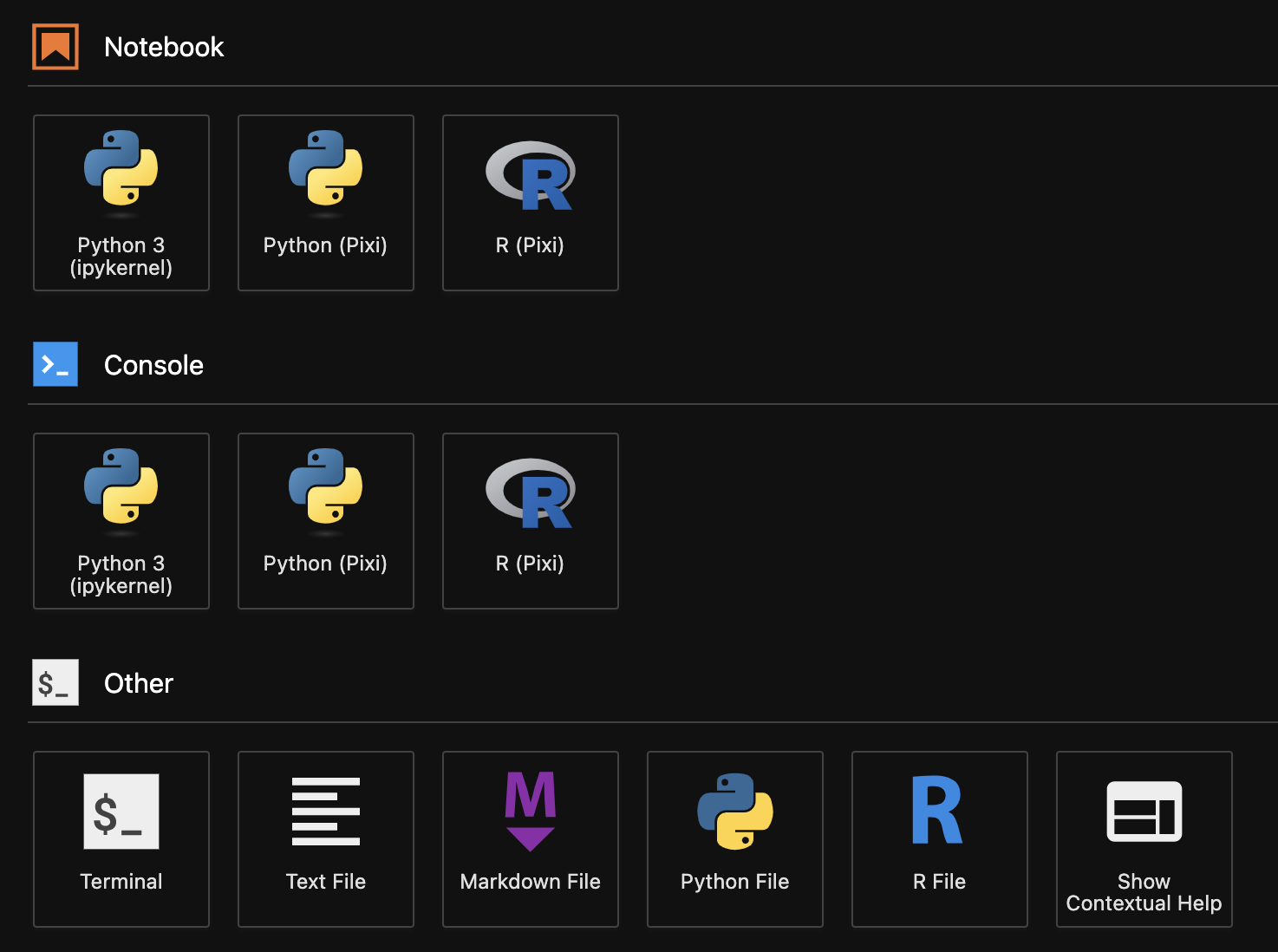
JupyterLab works seamlessly with Pixi, providing a powerful environment for interactive computing and data science.

Basic Setup

1

Initialize Pixi Workspace

pixi init
2

Add JupyterLab

pixi add jupyterlab
3

Start JupyterLab

pixi run jupyter lab
JupyterLab will open in your browser, ready to use with all dependencies from your Pixi environment.
A complete example is available in the Pixi repository.

Adding Scientific Packages

Install additional packages for data science and visualization:
pixi add ipywidgets matplotlib numpy pandas polars scikit-learn seaborn
These packages are immediately available in your Jupyter notebooks.

Available Kernels

JupyterLab supports multiple programming languages through kernels. Install additional kernels from conda-forge:

Bash Kernel

pixi add bash_kernel
bash_kernel - Execute bash commands in notebooks

C++ Kernels

pixi add xeus-cpp

Other Language Kernels

pixi add xeus-lua

Advanced Usage: Per-Directory Environments

Use pixi-kernel to run a single JupyterLab instance while using different Pixi environments for different notebooks.

Installation

1

Create Workspace

pixi init
2

Add Packages

pixi add jupyterlab pixi-kernel
3

Start JupyterLab

pixi run jupyter lab

How It Works

pixi-kernel automatically searches for a manifest file (pixi.toml or pyproject.toml) in:
  1. The notebook’s directory
  2. Any parent directory
When found, it uses that environment’s dependencies to run the notebook. JupyterLab launcher showing Pixi Kernel JupyterLab launcher showing Pixi Kernel

Example Structure

project/
├── pixi.toml               # Global JupyterLab installation
├── analysis/
│   ├── pixi.toml          # Analysis environment (pandas, matplotlib)
│   └── analysis.ipynb     # Uses analysis environment
└── ml/
    ├── pixi.toml          # ML environment (scikit-learn, pytorch)
    └── model.ipynb        # Uses ML environment
Each notebook automatically uses its directory’s Pixi environment.

Configuration Examples

Data Science Environment

pixi.toml
[workspace]
name = "data-science"
channels = ["conda-forge"]
platforms = ["linux-64", "osx-arm64", "win-64"]

[dependencies]
jupyterlab = "*"
ipywidgets = "*"
matplotlib = "*"
numpy = "*"
pandas = "*"
seaborn = "*"
scikit-learn = "*"

[tasks]
lab = "jupyter lab"

Multi-Language Environment

pixi.toml
[workspace]
name = "multi-lang"
channels = ["conda-forge"]
platforms = ["linux-64"]

[dependencies]
jupyterlab = "*"
bash_kernel = "*"
xeus-cpp = "*"
xeus-sql = "*"
r-irkernel = "*"
python = ">=3.11"

[tasks]
lab = "jupyter lab"

Machine Learning Environment

pixi.toml
[workspace]
name = "ml-workspace"
channels = ["conda-forge", "pytorch"]
platforms = ["linux-64"]

[dependencies]
jupyterlab = "*"
ipywidgets = "*"
matplotlib = "*"
numpy = "*"
pandas = "*"
pytorch = "*"
torchvision = "*"
scikit-learn = "*"
tensorboard = "*"

[tasks]
lab = "jupyter lab --no-browser"
tensorboard = "tensorboard --logdir=runs"

JupyterLab Extensions

Install useful JupyterLab extensions:
pixi add jupyterlab-git           # Git integration
pixi add jupyterlab-lsp           # Language Server Protocol
pixi add python-lsp-server        # Python LSP
pixi add jupyterlab-code-formatter # Code formatting
pixi add black                    # Python formatter
pixi add isort                    # Import sorting

Best Practices

Lock Dependencies

Commit pixi.lock to ensure all collaborators use identical package versions.

Separate Environments

Use pixi-kernel to isolate project dependencies while sharing JupyterLab.

Version Control Notebooks

Use nbstripout to remove notebook outputs before committing:
pixi add nbstripout
pixi run nbstripout --install

Task Shortcuts

Define tasks in pixi.toml for common commands:
[tasks]
lab = "jupyter lab"
notebook = "jupyter notebook"

Working with Remote Servers

Run JupyterLab on a remote server and connect from your local machine:

On Remote Server

pixi run jupyter lab --no-browser --port=8888

On Local Machine

ssh -N -L 8888:localhost:8888 user@remote-server
Open http://localhost:8888 in your local browser.

Jupyter Notebook vs JupyterLab

Both interfaces work with Pixi:
pixi add jupyterlab
pixi run jupyter lab
JupyterLab offers a more modern interface with better extension support.

Troubleshooting

Kernel Not Found

Ensure the kernel package is installed:
pixi list  # Check installed packages
pixi add bash_kernel  # Install missing kernel
Restart JupyterLab after adding kernels.

Import Errors

Verify the package is in your Pixi environment:
pixi list | grep package-name
pixi add package-name  # If missing

Port Already in Use

Specify a different port:
pixi run jupyter lab --port=8889

pixi-kernel Not Working

Check that a pixi.toml or pyproject.toml exists in the notebook’s directory or a parent directory.

Additional Resources